Store screenshots are the first thing people see on your listing, and the last thing you want to spend a weekend on. Most of that weekend isn't design. It's working out which sizes the stores want, then resizing the same slides for each one, in every language.
This is the list I wish I'd had: what App Store Connect and Google Play Console actually ask for, which sizes they fill in on their own, and the shortest way to make the set.
The short answer
If you ship on both stores and want to do as little as possible:
- iPhone: 1206 × 2622 px (the 6.3″ slot). This is the one App Store Connect requires.
- iPad (only if your app runs on iPad): 2064 × 2752 px (13″).
- Android phone: 1080 × 1920 px (9:16), at least four of them.
- Google Play feature graphic: 1024 × 500 px. Every Play listing needs one.
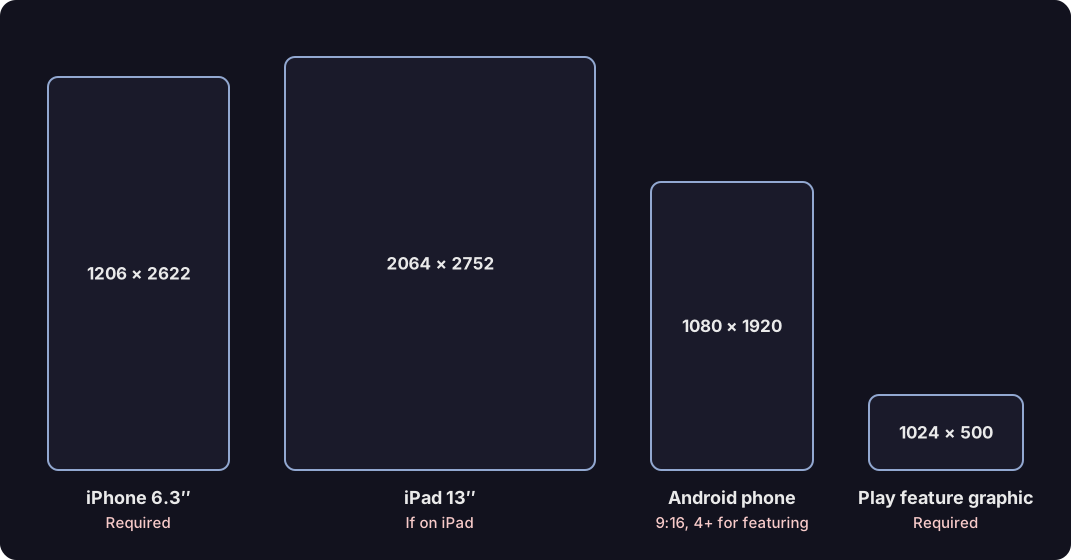
Everything below is the detail behind those four lines.
App Store screenshot sizes
App Store Connect groups iPhones and iPads into display slots. You upload up to 10 screenshots per slot, as PNG or JPEG, with no transparency. Smaller slots you leave empty are filled with your larger screenshots, scaled down.
| Slot | Portrait size (px) | Needed? |
|---|---|---|
| iPhone 6.3″ (Dynamic Island, medium) | 1206 × 2622 or 1179 × 2556 | Required |
| iPhone 6.9″ (Dynamic Island, large) | 1320 × 2868, 1290 × 2796 or 1260 × 2736 | Optional |
| iPhone 6.5″ (Face ID, large) | 1284 × 2778 or 1242 × 2688 | Optional |
| iPhone Duo | 1398 × 2034 outer, 2007 × 2853 inner | Required from April 2027 for apps built with the iOS 27.1 SDK or later |
| iPad 13″ | 2064 × 2752 or 2048 × 2732 | Required if your app runs on iPad |
| iPad 11″ | 1668 × 2420 (among others) | Optional |
| iPad 10.5″ | 1668 × 2224 | Optional |
Landscape is the same pair of numbers swapped, for example 2622 × 1206.
Two things trip people up:
- 6.9″ is no longer the one you must fill. Plenty of templates still start from 6.9″ (1320 × 2868). That's a fine optional slot, but the required one is the 6.3″ medium display.
- Scaled isn't always good. A slide designed for a tall phone and scaled into an iPad slot looks like a phone screenshot floating on a tablet. If you support iPad, give it its own layout.
The source for all of this is Apple's screenshot specifications.
Google Play screenshot sizes
Google Play is looser about exact pixels and stricter about shape.
| Asset | Size | Rules |
|---|---|---|
| Phone screenshots | 1080 × 1920 px (9:16) recommended | 2–8 per listing; any side 320–3840 px; the long side at most twice the short side |
| 7″ tablet screenshots | 1080 × 1920 px (9:16) | Up to 8; sides 1080–7680 px; 16:9 or 9:16 |
| 10″ tablet screenshots | 1440 × 2560 px (9:16) | Up to 8; sides 1080–7680 px; 16:9 or 9:16 |
| Feature graphic | 1024 × 500 px | Required for every listing |
Files are PNG (24-bit, no alpha) or JPEG.
The pixel limits only decide whether the upload goes through. To be eligible for Google Play's featuring and recommendations, an app needs at least four screenshots at 1080 px or more, in 9:16 portrait (at least 1080 × 1920) or 16:9 landscape (at least 1920 × 1080). A modern phone's raw 20:9 screenshot doesn't meet that, so stick to 9:16.
For the feature graphic, keep the important parts near the centre: Google crops its edges in some places. The full rules are in Google's preview assets guide.
Every language multiplies the set
Here's the part that turns an afternoon into a weekend. Say you have:
- 5 slides
- 3 sizes: iPhone 6.3″, iPad 13″ and Android phone
- 5 languages
That's 75 images, plus a feature graphic per language. Every headline edit means re-exporting all of them. Do it by hand in a design tool and you'll be resizing frames, pasting translations slide by slide and renaming files for the next hour.
Making them all from one design
I built Vitrine because I got tired of doing exactly that for my own apps. You design the slides once, and it lays them out for every size you tick:
- Drop in your screenshots. Plain ones from your phone or the simulator; Vitrine puts them in a device frame.
- Type your headlines and pick a look. Changing the look restyles every slide, size and language at once.
- Tick the devices. iPhone 6.3″, 6.9″ and 6.5″, iPad 13″, 11″ and 10.5″, Android phones and tablets, landscape versions and the Play feature graphic. Each one is laid out for its own shape, not stretched.
- Download one ZIP. PNGs at each store's exact pixel size, one folder per device, ready for App Store Connect and Google Play Console.
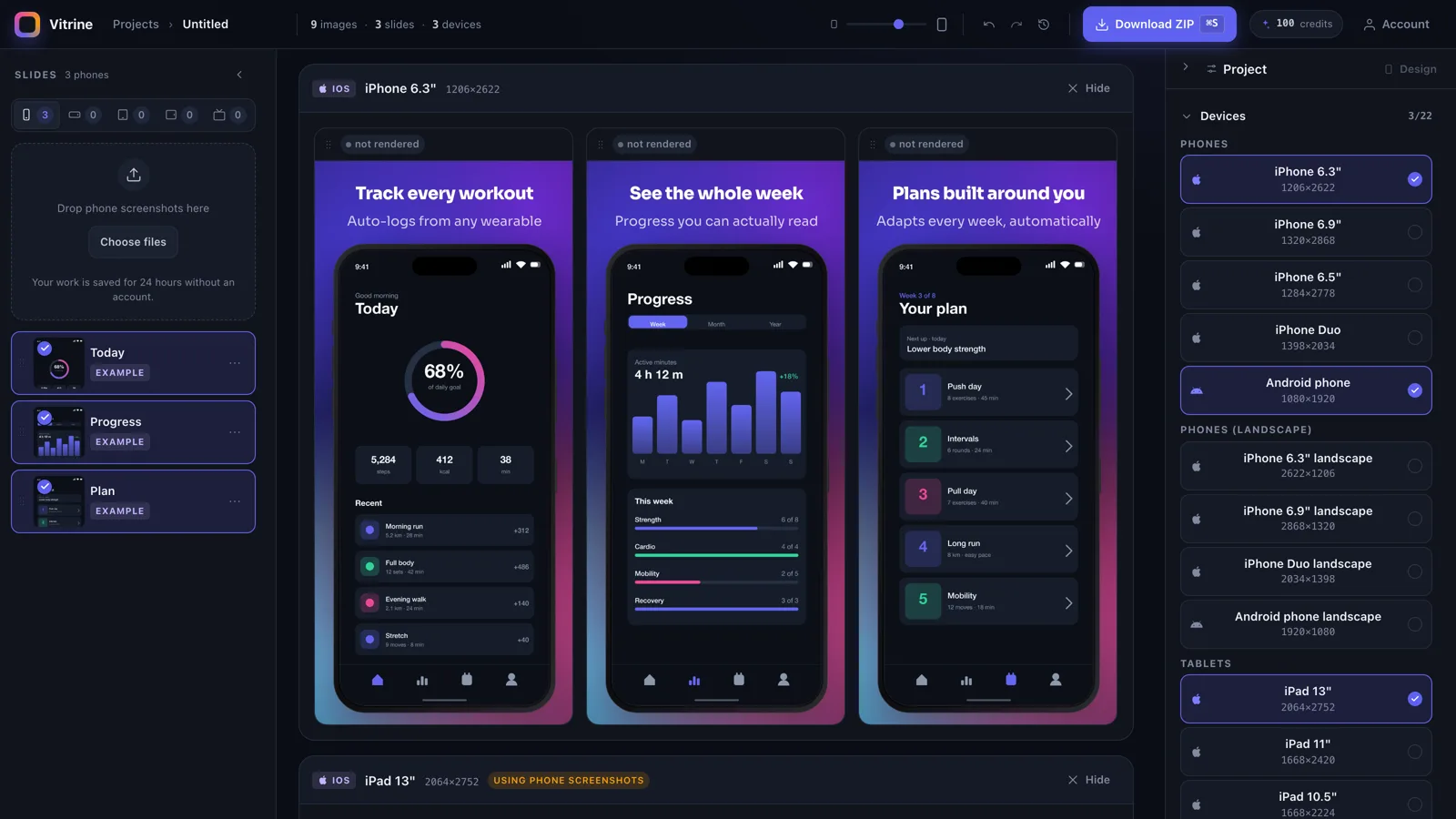
Translations work the same way. Type your own for free in any of 37 languages, or have AI translate every slide in one go, and each language gets its own folder of every size.
The editor, every size and every export are free, with no watermark, and you don't need an account to start. AI translation and captions use credits. Make your screenshots in Vitrine →
From Claude Code or your terminal
If you work in Claude Code, it can do the design too. The Vitrine Deck plugin reads your app's repo and screenshots, or builds the app and captures them itself, plans the slides, checks every one against these sizes and the stores' rules, and hands you a link to open the deck in the editor:
/plugin marketplace add DrunkenDealer/claude-plugins
/plugin install vitrine-deck@mashlab
Then ask "Make the store screenshots for this app" in your app's repo.
Under the plugin is the vitrine CLI, which you can also run yourself, from a script or CI. It needs Node.js 24 or later:
npm install -g github:DrunkenDealer/claude-code-vitrine-deck
npm explore -g vitrine -- npx playwright install chromium
vitrine init --screenshots <folder> starts a deck with one slide per screenshot, vitrine check scores every slide for layout and contrast, vitrine render writes the PNGs, and vitrine push --server https://vitrine.mashlab.app opens the deck in the editor. More on the CLI and the plugin →
A quick checklist before you upload
- iPhone 6.3″ slot filled (1206 × 2622 or 1179 × 2556).
- iPad 13″ filled if the app runs on iPad, with a layout made for the tablet.
- At least four 9:16 Android phone screenshots, 1080 × 1920 or larger.
- A 1024 × 500 feature graphic with nothing important near its edges.
- No transparency in any PNG.
- Every language checked for headlines that wrap badly or run off the slide.
If you'd rather skip the resizing, open Vitrine and download the whole set in a few minutes.
FAQ
What screenshot size does the App Store require?
App Store Connect requires at least one iPhone screenshot in the 6.3-inch slot: 1206 × 2622 or 1179 × 2556 pixels in portrait. If your app runs on iPad, it also needs at least one 13-inch iPad screenshot at 2064 × 2752 or 2048 × 2732.
Do I still need 6.9-inch iPhone screenshots?
No. The 6.9-inch slot (1320 × 2868) is optional. The required iPhone slot is the 6.3-inch medium display.
What size should Google Play screenshots be?
Use 1080 × 1920 pixels (9:16) for phones. Play accepts 2 to 8 screenshots with sides between 320 and 3840 pixels, but to be eligible for featuring and recommendations an app needs at least four screenshots in 9:16 at 1080 × 1920 or larger.
What size is the Google Play feature graphic?
1024 × 500 pixels, as a PNG without transparency or a JPEG. Every Play listing needs one.
How many screenshots can I upload?
Up to 10 per display size on the App Store and up to 8 per device type on Google Play.
How do I make screenshots for every size and language at once?
Design the slides once in a tool that lays them out per device, such as Vitrine. You tick the store sizes and languages you need and download one ZIP of PNGs at each store's exact pixel size.